This guide covers the settings and configuration that you can implement to help users configure the Eclipse Online app.
Downloading and Installing Eclipse Online
-
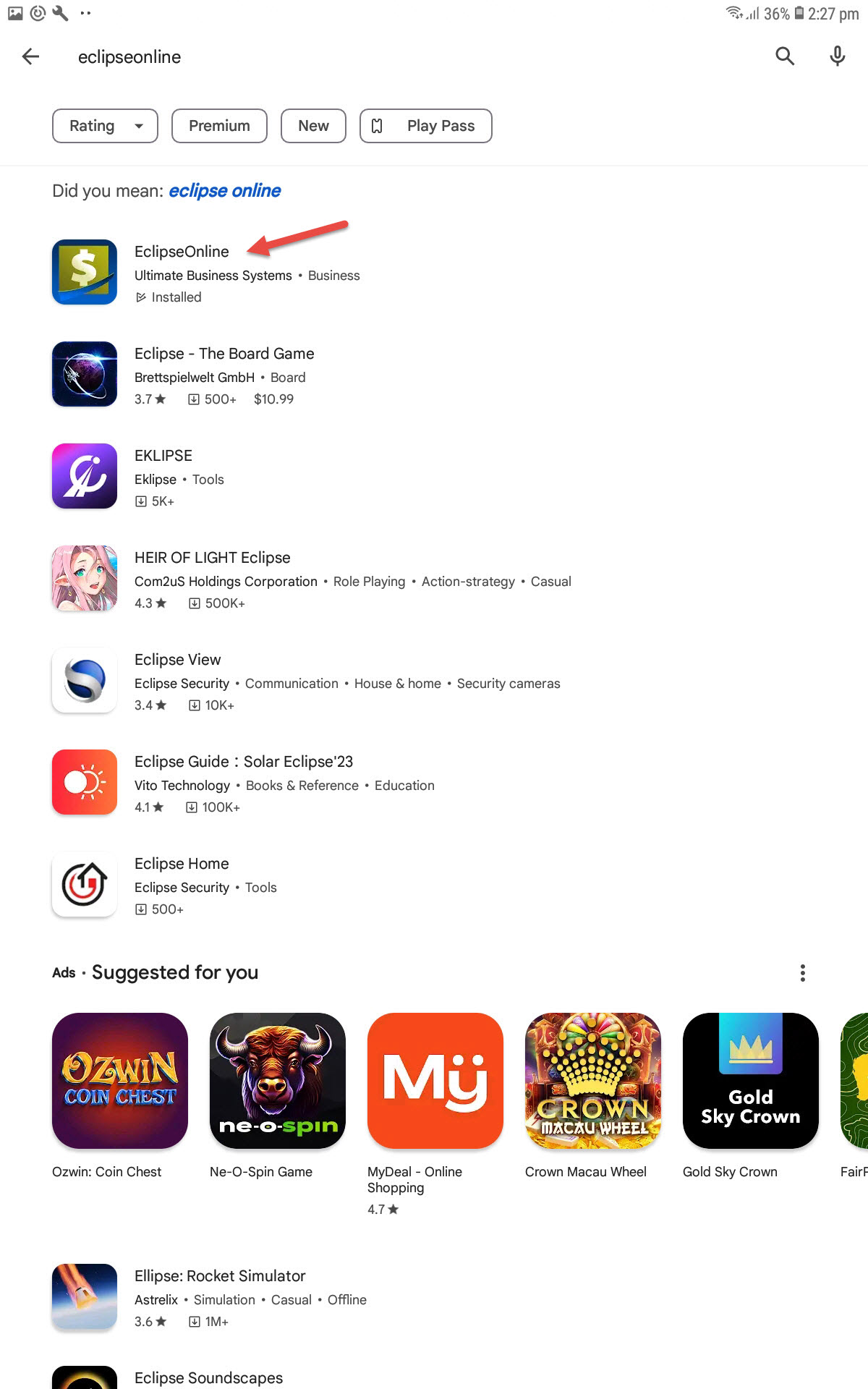
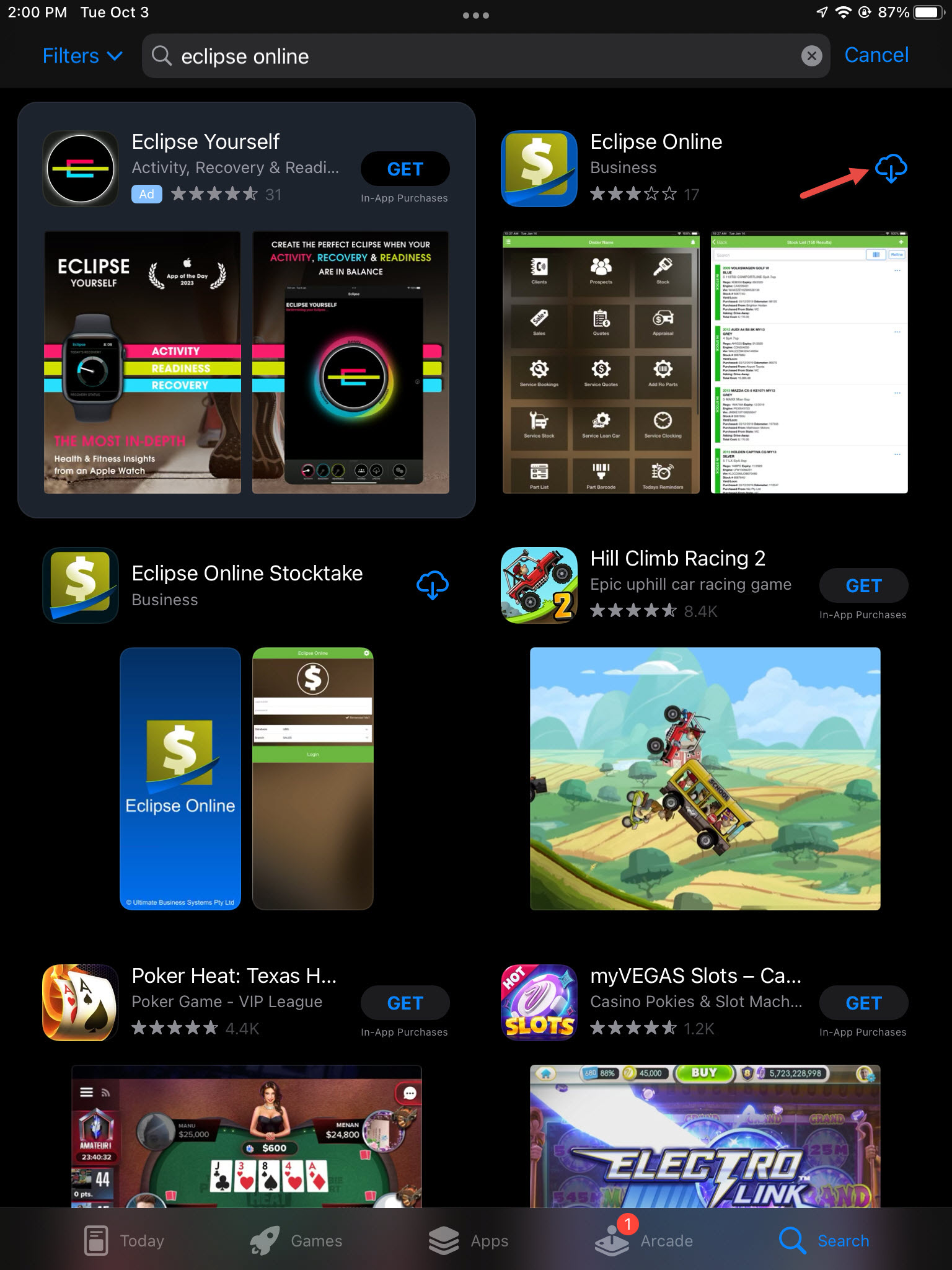
Depending on the type of device being used, you will need to head to one of these two stores. For Android, you need to launch the Play Store app. For Apple iOS, you will need to launch the Apple Store. Within these two stores using the search function look up Eclipse Online and download the app.
Connecting to your Database
-
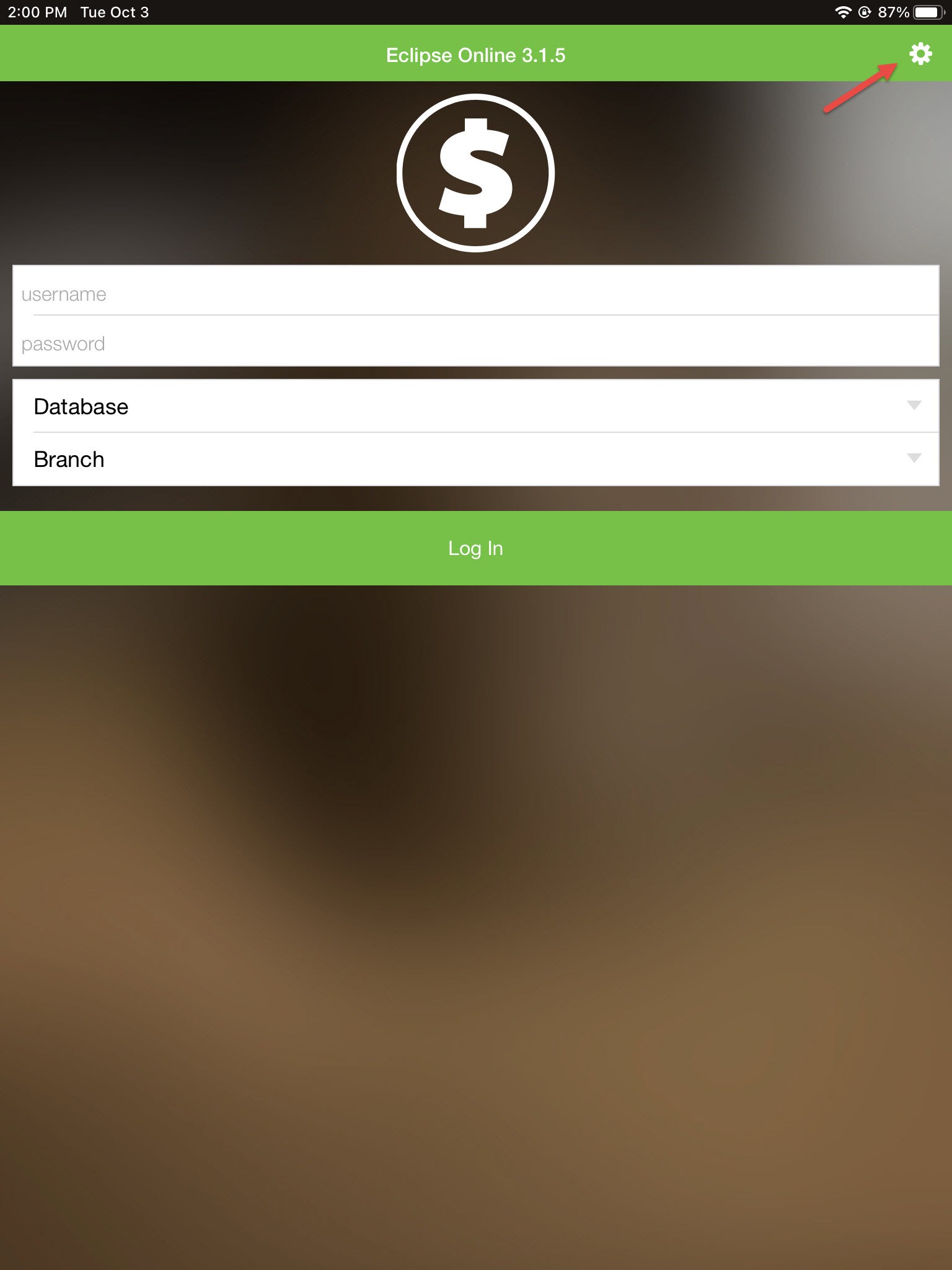
Once successfully downloaded, we will need to launch the app and tap on the cog symbol located in the top right corner of the login screen so we can configure and let the app know which server to connect to on which port using which protocols.
-
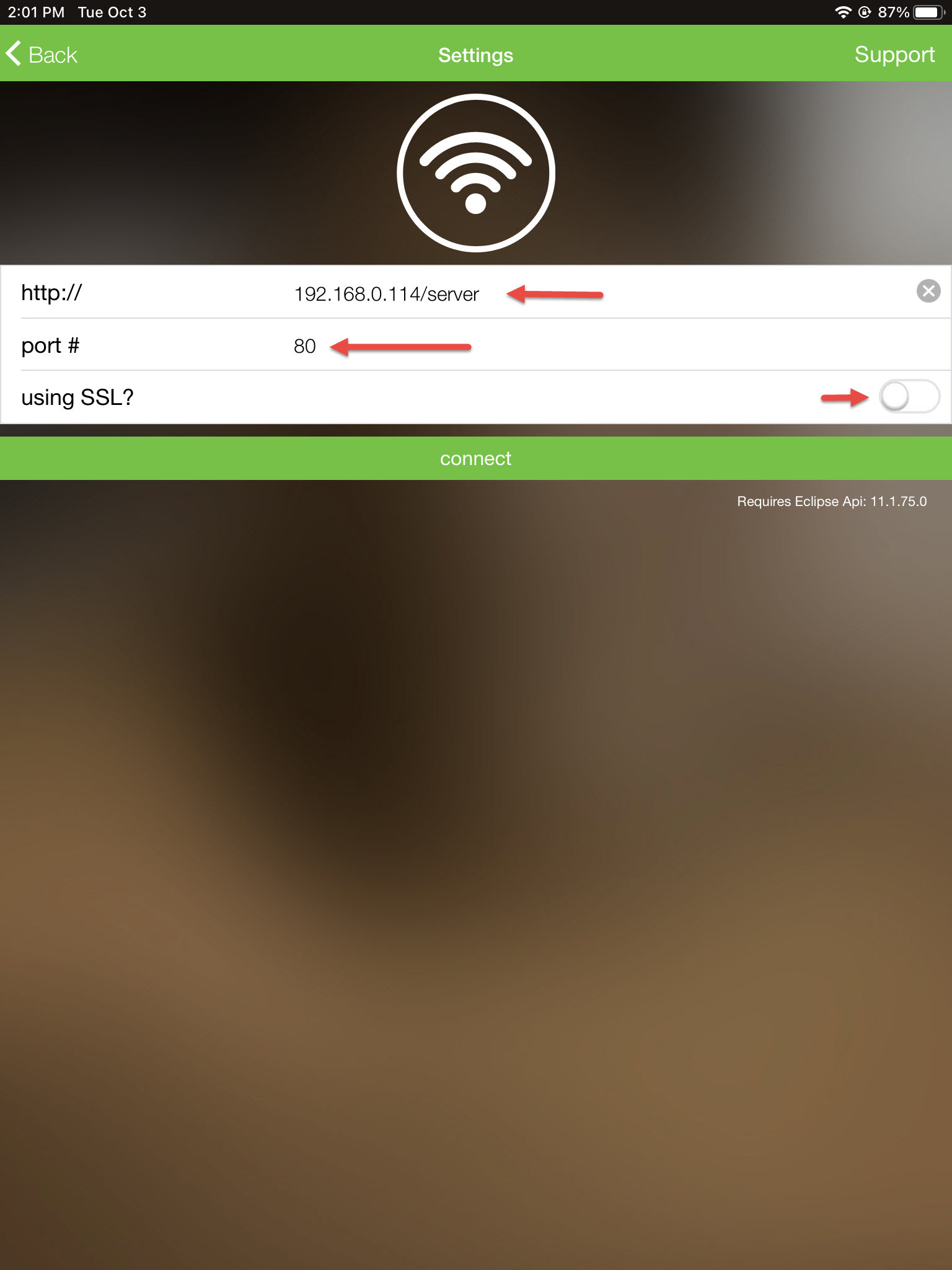
In the configuration screen, you will be required to enter your Eclipse Online server details. The port that is set for the app and if SSL is being used. The server details can be expressed as either an internal IP address or your server's hostname for example: 192.168.0.111/server or EOSRV01/server. By default, we install and set Eclipse Online to use port 8080 without using SSL. The port and SSL used may vary depending on the business and how your IT administrator has decided to instruct us on the initial setup of the server. It's always best to consult with your IT administrators to obtain the correct connection details.
Once we have the correct information we will need to tab the connect button for the app to remember and store this information. Once the connection is successful the app will go back to the login page with your Eclipse Database and branch details generated, leaving you to type in your username and password.
Accessing outside of the Dealership (public IP / host)
Port Forwarding
Port forwarding is a way of making your router use a specific port to communicate with certain devices. By setting a specific port for your devices, you are telling your router to always accept requests for those ports and forward data to a device’s private IP address.
In order to understand port forwarding, it helps to understand a little about how routers work first. Your router’s job is to transmit an internet signal to all your devices over a local area network (LAN). To do this, your router assigns each device in your LAN its own local IP address. For example, your Eclipse Online server will have a private IP address like 192.168.0.2 or 10.0.2.
Then, on top of that, the applications and services on each device are also assigned a port number. For example, an application (Eclipse Online) on your server will have an IP address with a port number attached like 192.168.0.2:80 or 10.0.0.2:80.
With this unique IP address and port number, your router knows which program or service to send information to. This lets you and others access devices and programs on your LAN over a wide area network (WAN).
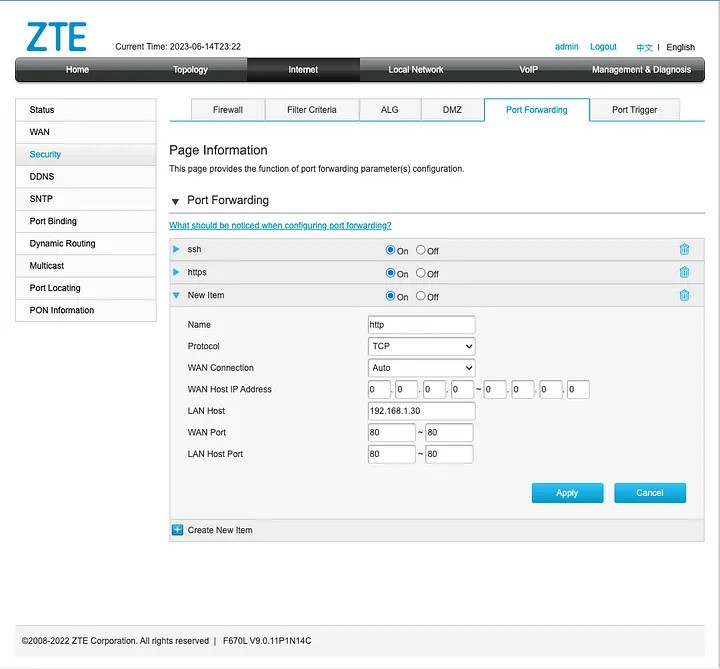
To be able to set up port forwarding you will need to access your router's configuration menu. From there you will be able to set a port forward to your server's internal IP address and port number.
Once this is configured you will be able to connect to your Eclipse Online Server from anywhere over the World (WAN) by using your public IP address rather than your internal server IP address in the Eclipse Online server settings.
Please keep in mind that ISPs generally provide their customers with dynamic IP addresses. In order for a successful port forwarding you would need to obtain a static public IP address from your ISP.
Dynamic IP
These are a type of IP addresses that change each time you disconnect and reconnect to the internet through your ISP.
Static IP
These are a type of IP addresses that do not change each time you disconnect and reconnect to the internet through your ISP.
Public Hostnaming
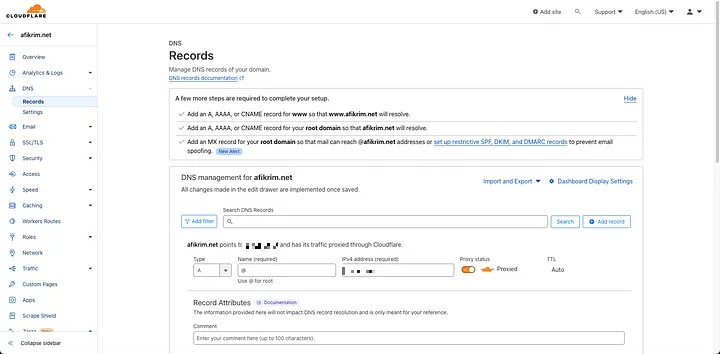
After successfully setting your port forwarding, in order to use a public hostname rather than your public IP address in the Eclipse Online server settings you would need to buy your own domain and set up a link between your public IP address and domain name from your private DNS Provider.
After successfully registering your site, you can go to the DNS menu and add an A record that points your public IP address (static) to your domain name. Once this has been completed you can enter your domain name in the server address section of the Eclipse Online app and be able to connect to your EO server as if you were on your local LAN.