
This process is to be used when required to change your stock from one floorplan provider over to another. The below guide will demonstrate the process of moving stock from Floorplan Company A to Floorplan Company B.
If done correctly this process will be GST neutral so it is important that your dollar figures are correct and that the payout/invoice/transfer dates are the same.
Paying out Floorplan Company A
The first step in this process is to pay out Floorplan Company A.
-
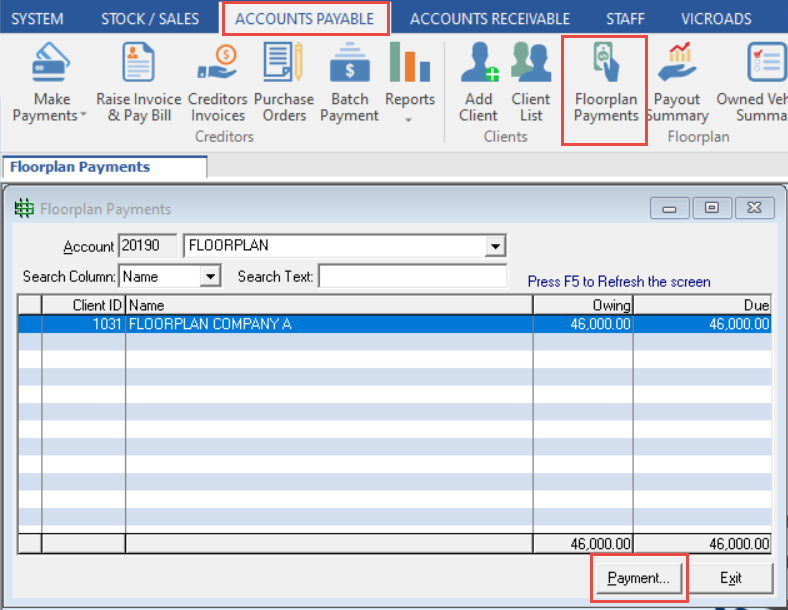
In the Accounts Payable tab, click Floorplan Payments.
-
Select Company A, and click Payment.
-
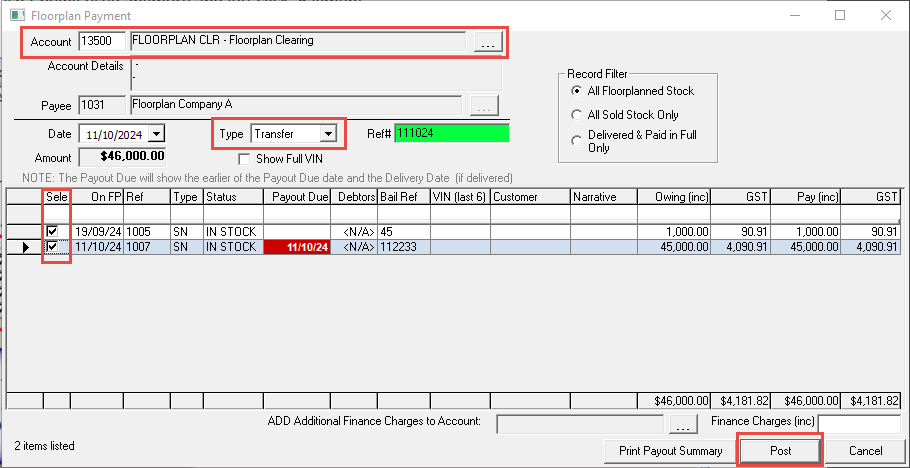
Select the Floorplan Clearing Account. (If you do not have a floorplan clearing account you will need to make one)
-
Select the type of Transfer.
-
Tick all Vehicles that are required to change floorplan provider.
-
Click Post.
Invoicing Floorplan Company B
After transferring Floorplan Company A stock to the clearing account, you will need to create a debtor invoice to Floorplan Company B. This will need to be done individually for each stock unit.
If you have 100 vehicles changing floorplan provider, you will need to create 100 debtor invoices.
-
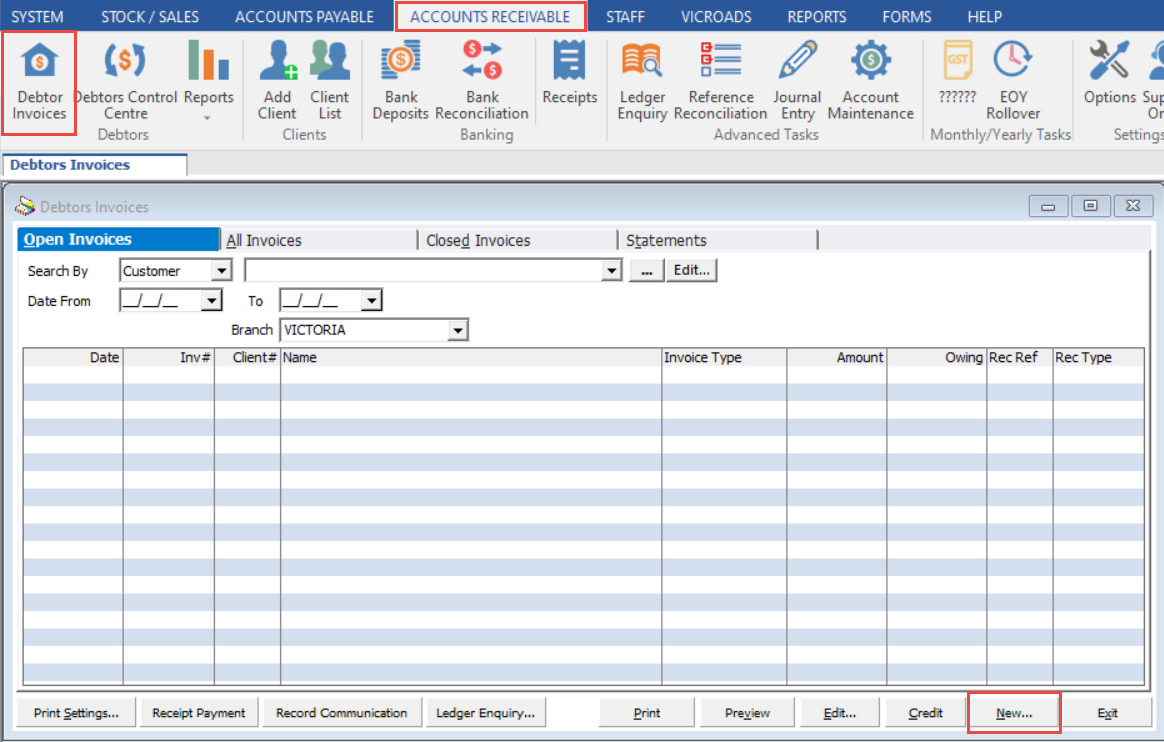
In the Accounts Receivable tab, click Debtor Invoices.
-
Click New.
-
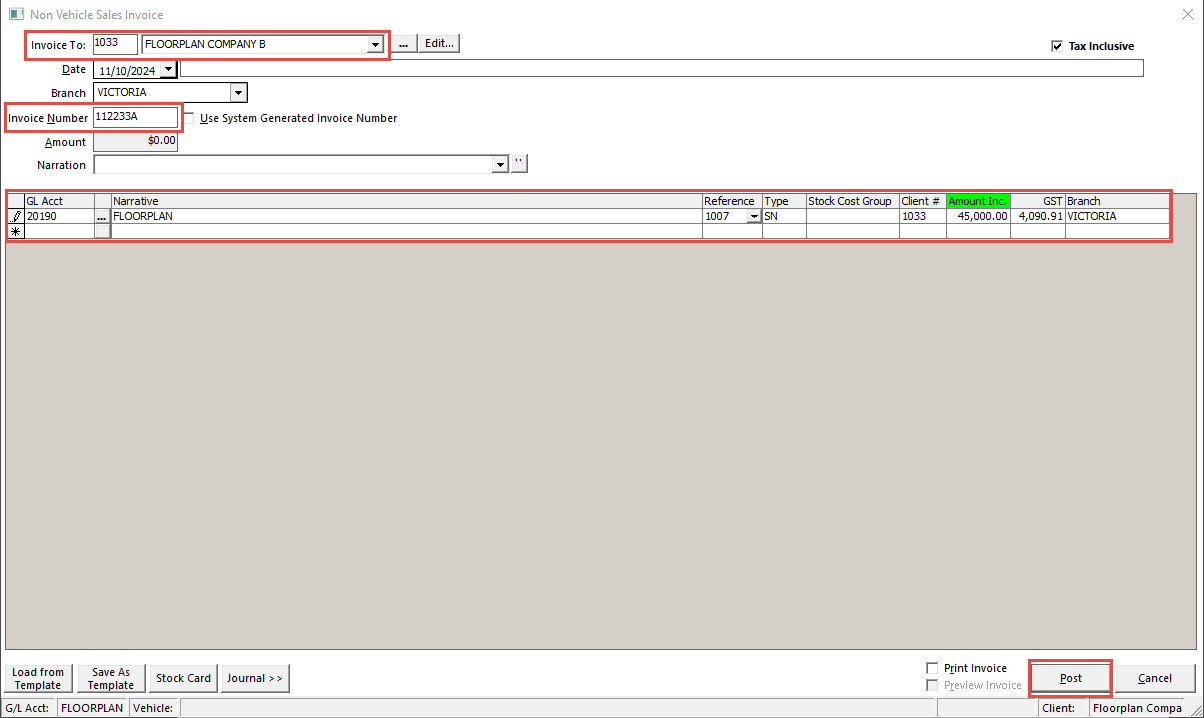
Select Floorplan Company B in the Invoice To field.
-
Use the Bailment Reference as the Invoice Number. (If the system does not allow you to use the same reference, put an A on the end)
-
Select your Floorplan Account in the G/L Account field.
-
Select the Stock Number in the reference column, with the Type of SN.
-
Enter the Floorplanned Amount.
-
Click Post.
Clearing out Floorplan Company B debtor against the Floorplan Clearing Account
The last step is to clear out the total of your debtor invoices to ensure they don't display as an outstanding debt against your business.
-
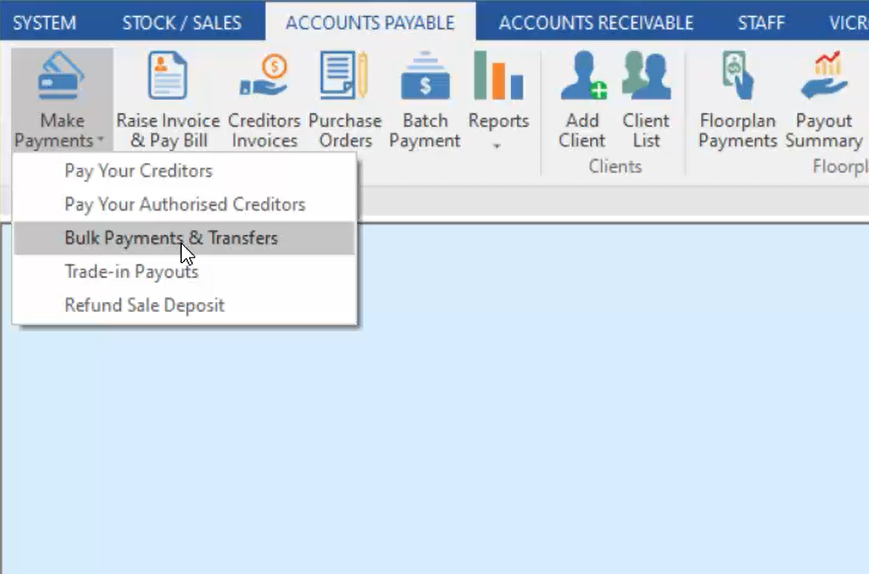
In the Accounts Payable tab, click Make Payments, then click Bulk Payments & Transfers.
-
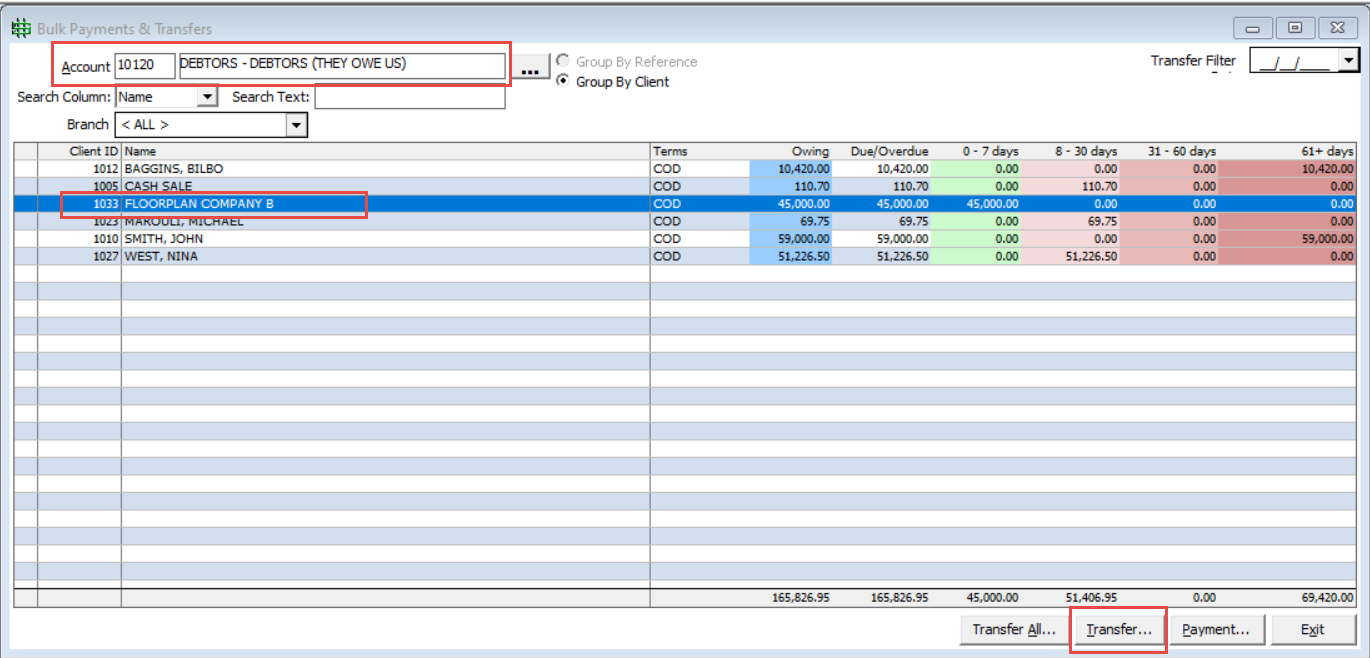
Select your Debtors account.
-
Select Floorplan Company B, then click Transfer.
-
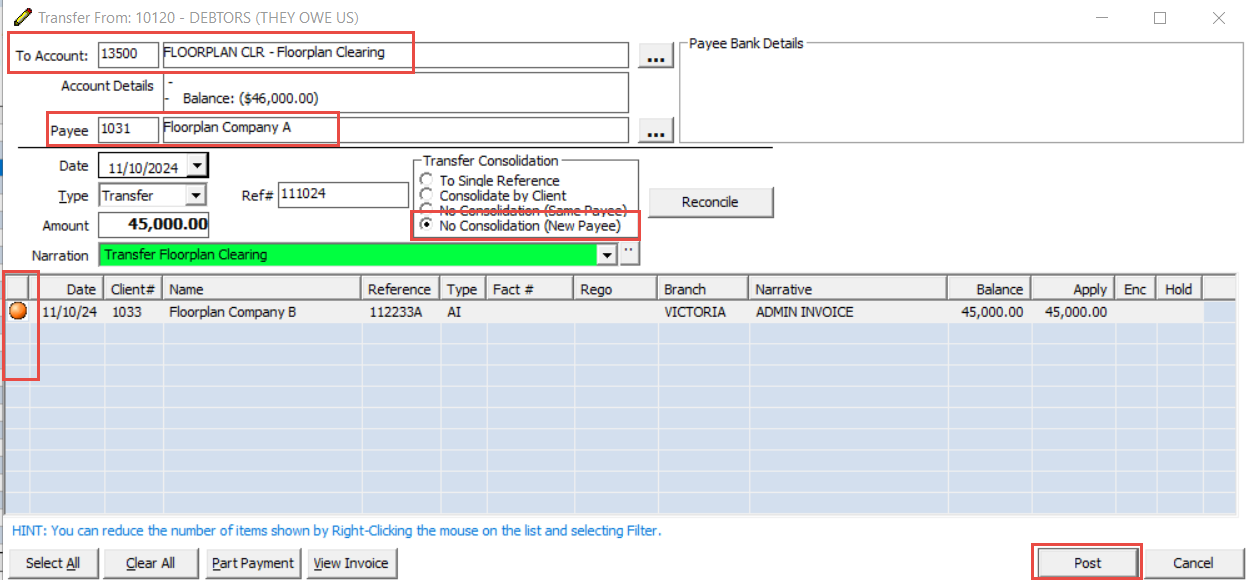
Select your Floorplan Clearing Account as the To Account.
-
Select Floorplan Company A as the Payee.
-
Select No Consolidation (New Payee).
-
Tick all your Debtor Invoice lines.
-
Enter a Reference & Narration, then click Post.
Related Articles
How to add a new floorplan company
How to create a new general ledger account