
This guide walks you through importing a parts price file into Eclipse Parts. Follow each step carefully to avoid import errors.
1. Open the Import Tool
-
Open Eclipse Parts.
-
Go to Parts Management → Import Parts Price Files.

2. Select or Create a Price File Layout
-
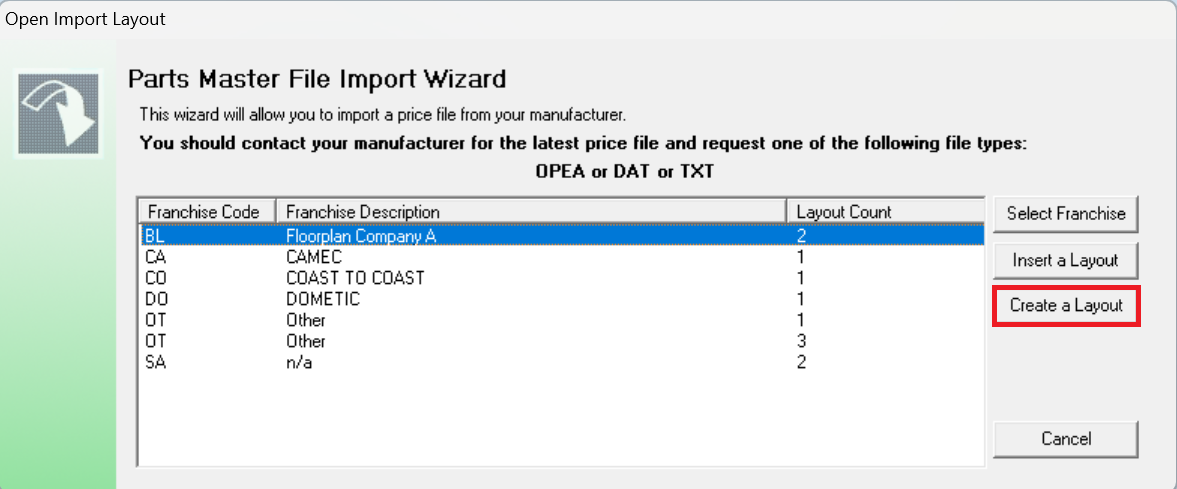
If you already have a price file template for a franchise, select it.
-
If not, Click Create a Layout.
3. Choose the Price File
-
Select the correct supplier franchise code in the drop down menu
-
Select the supplier’s price file.
-
Accepted formats:
.txtor.csv
(Select all files if using a CSV price file - Excel.xlsxwill not be accepted).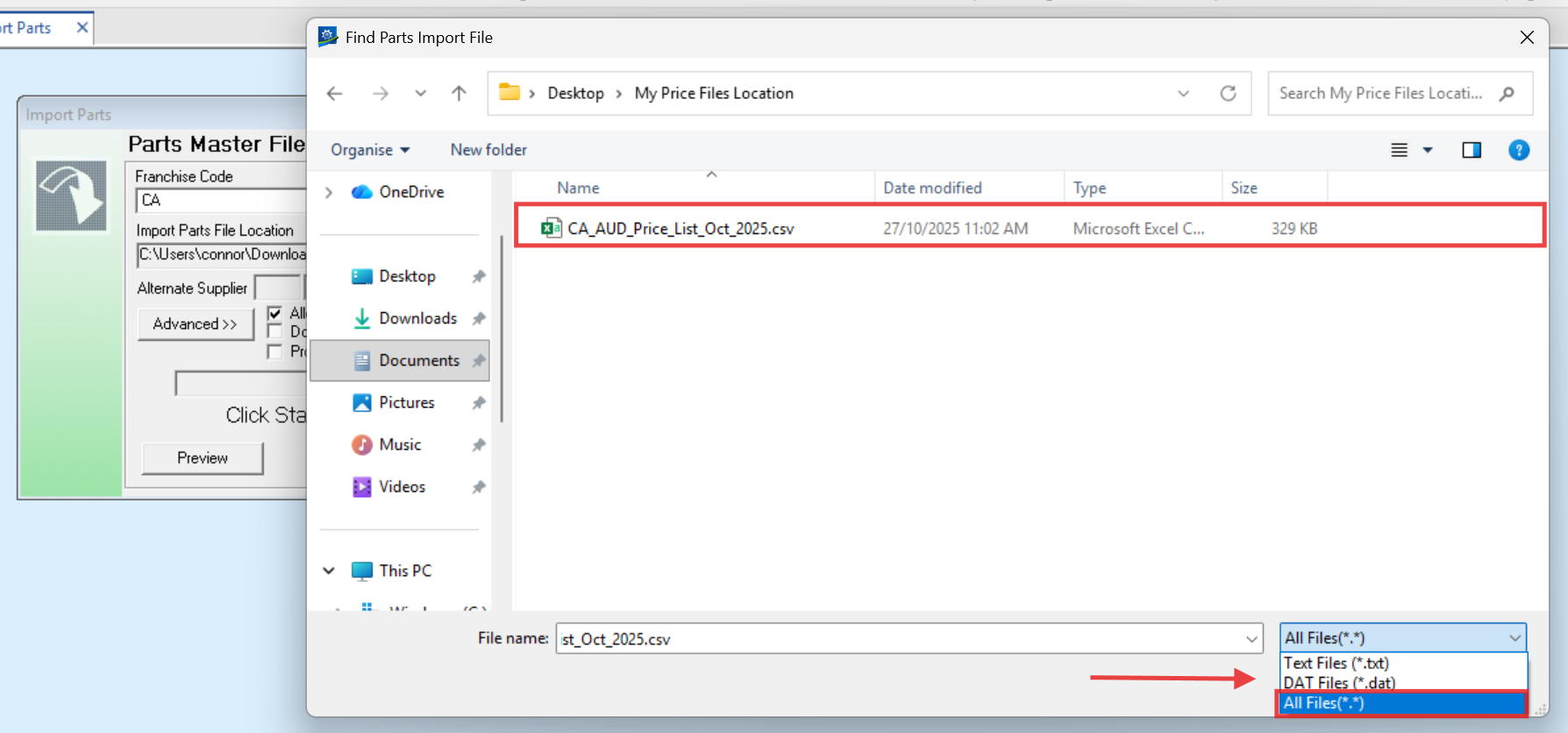
4. Import Options
Allow price decreases
-
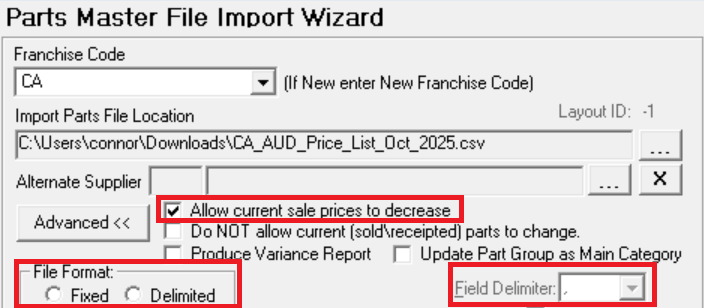
Tick Allow current sale prices to decrease if you would like sale prices (List, Retail, Trade, etc.) to be able to decrease in line with the price file.
-
Leave unticked if you would like to stop sale prices from decreasing.
File format
-
Select whether the file is Fixed or Delimited.
-
Most suppliers now use Delimited (comma).
5. Map Fields (Edit Fields Section)
-
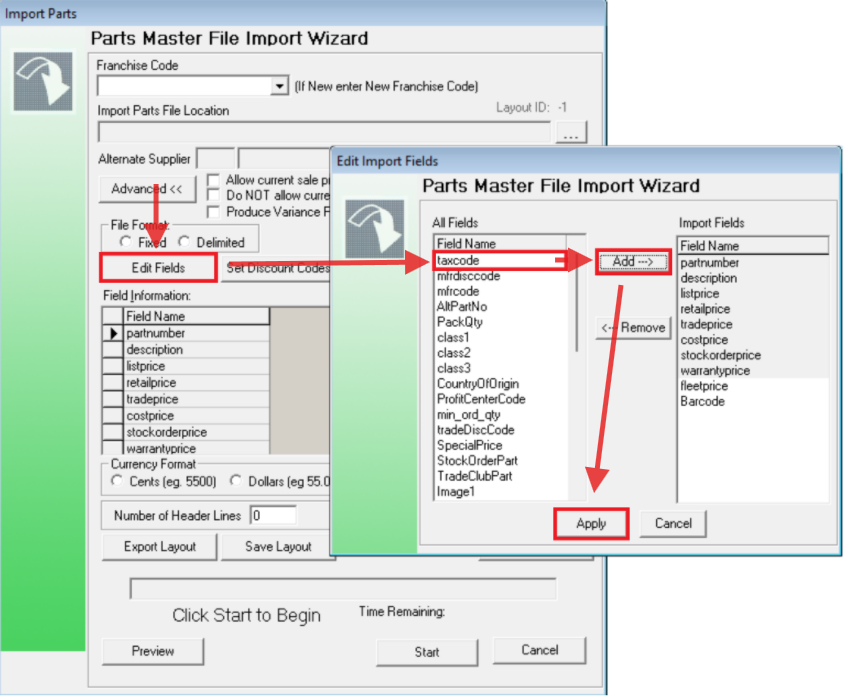
Enable the fields you want to import.
-
Move required fields to the right using Add →.
-
When done, click Apply.
6. Prepare & Clean Your Price File
Open the file in Notepad or Excel.
Remove unnecessary commas
-
Use Find & Replace:
-
Notepad: Ctrl + H
-
Excel: Ctrl + F
-
-
Find:
, -
Replace with: (leave blank)

Remove currency symbols
-
Find:
$ -
Replace with: (leave blank)

Note: Currency values must be in this format:
XX.XX
If dollar symbols remain, the import will fail.
7. Identify Column Indexes
Columns in the import wizard are referred to as Index values.
Example File
STYLE NUMBER,DESCRIPTION,BARCODE,COLOUR,W/SALE Ex GST,W/SALE Inc GST,RRP,MARGIN,ORDER QUANTITY,TOTAL W/SALE VALUE Ex GST,TOTAL RRP VALUE,COMMENTS
TIAV-014,BLACK LARGE VAN POCKET,9333643112214,BLACK,$35.00,$38.50,$55.00,30%,,$-, $-,
From this:
-
Style Number → Part Number → Index 0
-
Description → Index 1
-
Barcode → Index 2, and so on.
Important:
If you do not want to import/update a field, set its index to -1.
8. Complete the Mapping
-
Assign each enabled field its correct index.
-
Select the currency format the file uses (either
XXXXorXX.XX). -
Select the GST type for the file.
-
If multiple GST types exist (Cost price is commonly ex. GST and Sale Price is Inc. GST), select Inc. GST and adjust the Cost Price GST in the Markup Ranges area (enter <% {X} + (0.1 * {X}) %> where X is the field index value).
-
-
Set the number of header lines (usually
1, but some files may have more) and any applicable footer lines. -
Save the Layout so you don’t lose your mapping.

9. Preview the Import
-
Click Preview.
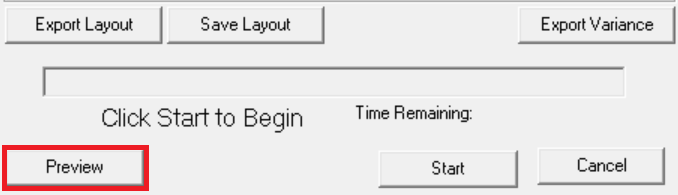
-
If the preview fails, the error window should tell you the line and field in your file that caused the issue.
-
If successful, you’ll see a comparison of:
-
Left: Existing part data
-
Right: New incoming data
-
-
Blue values show what will be updated.
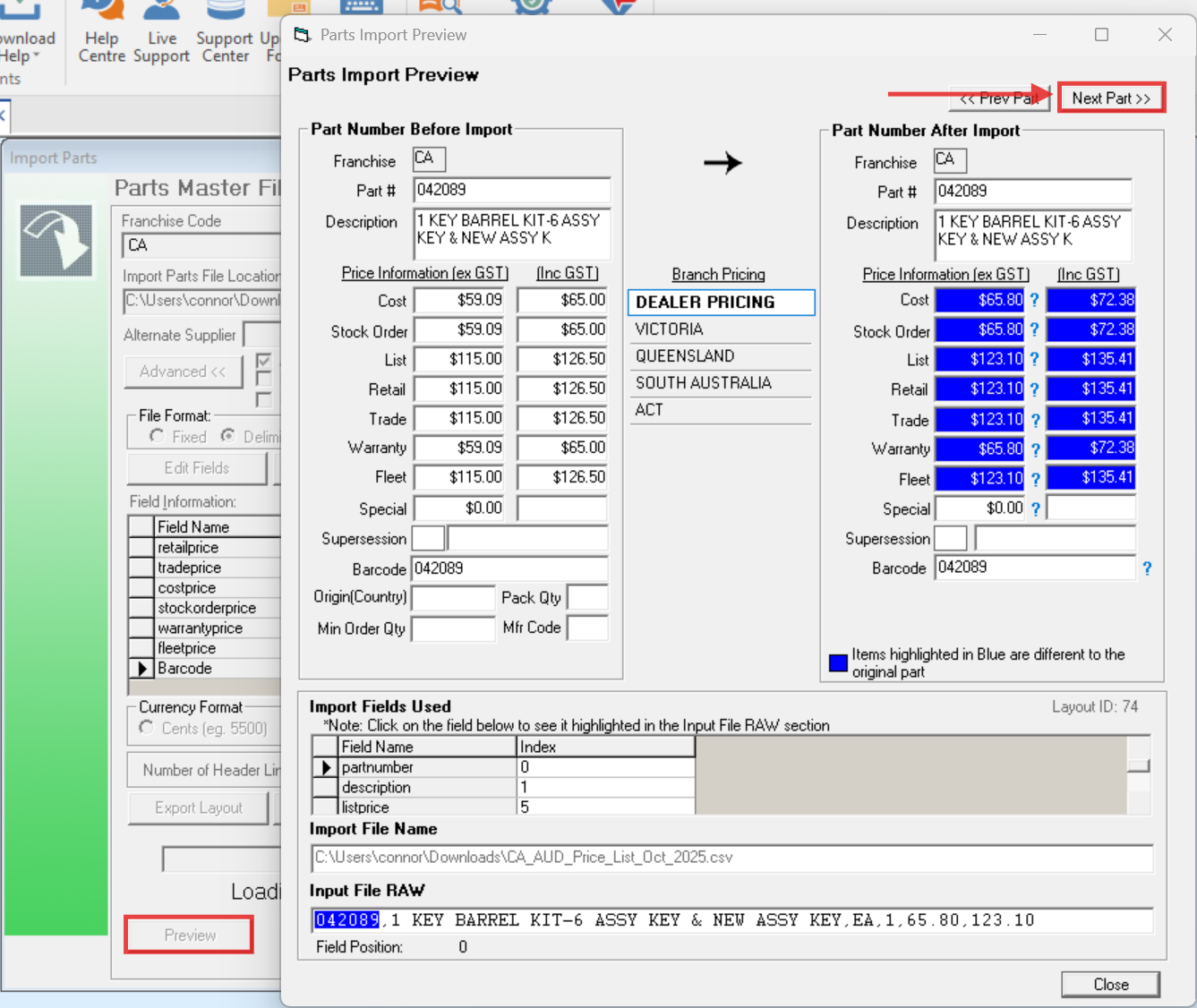
Check 5–10 sample parts to ensure:
-
Prices look correct
-
Descriptions match
-
Barcode and part numbers align properly
10. Run the Import
-
Close the preview window.
-
Click Start.
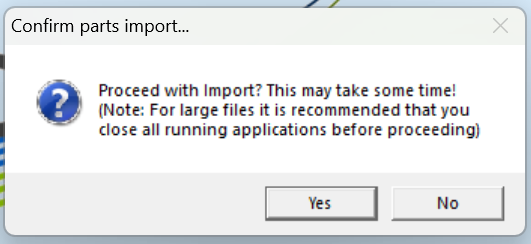
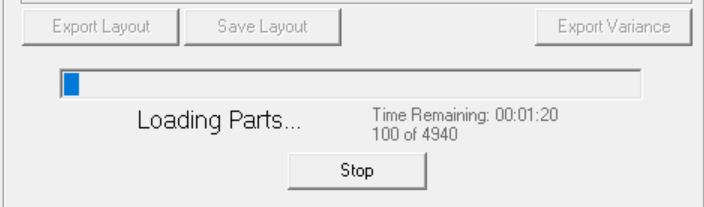
Note:
Large files or slower servers may take several minutes to process.
Import Complete
Once finished, Eclipse will update all valid parts according to your mapping and data.