
The Stock Order Calculation function uses parameters set to calculate what parts the system believes you need to order.
-
In the Purchase Parts tab, click Stock Orders.

-
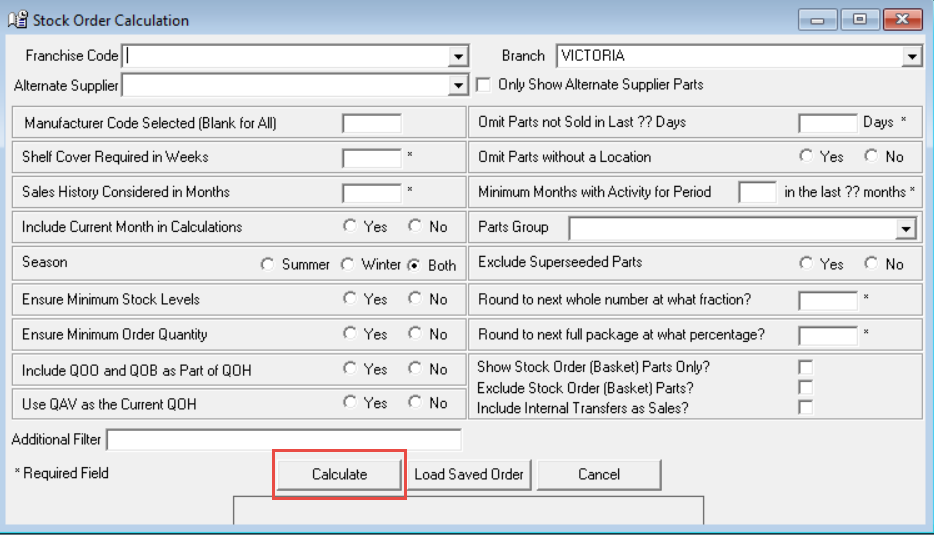
Enter your calculation parameters here. This can include franchise, minimum stock levels, parts groups, and parts activity.
-
Click Calculate.
-
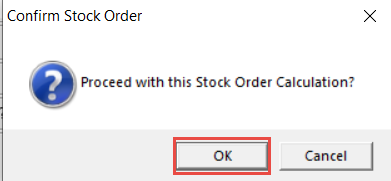
Click OK.
-
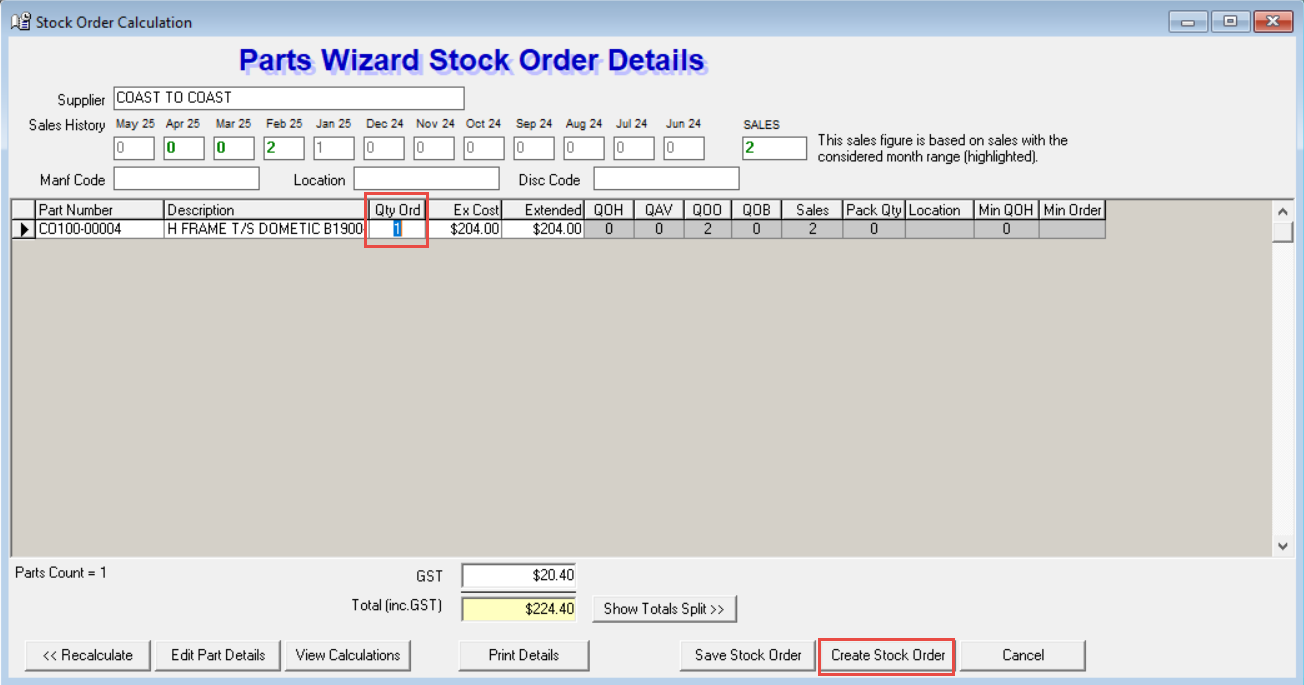
The calculated stock order will display. You can edit Qty Ordered in this screen.
-
Click Create Stock Order.
-
The Purchase Order screen will then open with your stock order details.
References
Franchise Code — Filters the order to parts belonging to a specific manufacturer/franchise (e.g., Toyota, Ford). Leave blank to include all franchises.
Branch — The dealership branch the order applies to (e.g., use stock levels at this branch for filtering/selection).
Alternate Supplier — Limit parts to this specific alternative supplier.
Only Show Alternate Supplier Parts — When ticked, restricts the calculation to parts sourced exclusively from the alternate supplier.
Manufacturer Code Selected — Further narrows parts down to a specific manufacturer code within the franchise. Blank = all codes included.
Parts Group — Filters by a defined group of parts (e.g., service items, body parts), useful for targeted ordering runs.
Sales History Considered in Months — How far back the system looks at past sales to forecast demand. A longer window smooths out spikes; shorter is more reactive to recent trends.
Include Current Month in Calculations — Whether the current (incomplete) month's sales are factored in. Useful mid-month if sales are already significant.
Minimum Months with Activity for Period — A part must have had sales activity in at least this many months within the history window to be included. Prevents ordering slow/dead stock.
Omit Parts not Sold in Last ?? Days — Excludes parts with no sales movement in the specified number of days. Helps avoid ordering genuinely stagnant stock.
Season — Limit to only parts marked as Summer, Winter, or Both seasons, useful for seasonal demand planning.
Shelf Cover Required in Weeks — How many weeks of stock you want on hand after the order arrives. This is your target stock depth (e.g., 4 weeks cover = you want enough stock to last 4 weeks based on sales rate).
Ensure Minimum Stock Levels — If Yes, the system won't let order quantities drop below the minimum stock level set on each part's record.
Ensure Minimum Order Quantity — If Yes, respects the minimum order quantity defined per part (often set by the supplier).
Omit Parts without a Location — If Yes, excludes parts that don't have a defined bin/shelf location in the warehouse. Useful to avoid ordering parts with no assigned storage home.
Include QOO and QOB as Part of QOH — QOO = Quantity on Order, QOB = Quantity on Backorder. If Yes, these are treated as if already in stock when calculating how much to order, preventing over-ordering.
Use QAV as the Current QOH — QAV = Quantity Available (QOH minus any allocated/reserved stock). If Yes, uses the truly "free" stock figure rather than raw on-hand quantity — generally more accurate.
Round to next whole number at what fraction? — If the calculated order quantity is a decimal, this sets the threshold for rounding up to the next whole unit (e.g., at 0.5).
Round to next full package at what percentage? — If you're close to filling a full supplier pack/box, this rounds up to complete the pack at a set percentage threshold (e.g., if 80% of a pack is needed, order the full pack).
Exclude Superseded Parts — If Yes, parts that have been replaced by a newer part number are excluded from the order.
Show Stock Order (Basket) Parts Only? — Limits results to only parts already sitting in a saved basket/order, rather than a full recalculation.
Exclude Stock Order (Basket) Parts? — The inverse — excludes basket parts and calculates everything else fresh.
Include Internal Transfers as Sales? — If Yes, stock moved between branches counts as a "sale" for demand forecasting purposes. Relevant for multi-branch dealers sharing inventory.
Additional Filter — A free-text or coded field for any custom filtering logic beyond the standard options.