
UBS Knowledge Base
Breadcrumbs

How to process a customer service invoice

Once the repair order has been completed, it should then be costed up, and either marked as Work Finished & Invoice Ready, or the invoice should be completely processed if you are not waiting on customer payment.


  1. In the Repair Order List screen, find your RO and click Invoice.

    https://s3-ap-southeast-2.amazonaws.com/aus-cdn.freshdesk.com/data/helpdesk/attachments/production/51229791274/original/mX7dQSLXZDu61ShAtXCHRcy11QY_t88D9A.png?1749527743

  2. Ensure the costs have been added to the RO. If they have not, click Review Job Charges to add all costs associated.

    https://s3-ap-southeast-2.amazonaws.com/aus-cdn.freshdesk.com/data/helpdesk/attachments/production/51229791325/original/zA5uMLd1BPX96290SROV_MG_Ae5M6rK0GQ.png?1749527756

  3. If the customer has not yet arrived to make payment, we want to mark the RO as Work Finished & Invoice Ready.

  4. Click Prepare Invoice, then Prepare Customer Invoice.

    https://s3-ap-southeast-2.amazonaws.com/aus-cdn.freshdesk.com/data/helpdesk/attachments/production/51229791363/original/unlJof2y40kpcvi-4upULp4Hehry-BMaFA.png?1749527765

  5. Enter the Completion and Invoice Date.

  6. Select the Payment Method from the drop down in the Code column (you may not know this and can change later when processing the payment).

  7. Click Work Finished & Invoice Ready.

    https://s3-ap-southeast-2.amazonaws.com/aus-cdn.freshdesk.com/data/helpdesk/attachments/production/51229791471/original/opfTnPoJrmZClsP71de-QHIP54hI5iuWeA.png?1749527775

  8. A pop up will appear asking if you want to Print or Email the invoice.

    https://s3-ap-southeast-2.amazonaws.com/aus-cdn.freshdesk.com/data/helpdesk/attachments/production/51229791530/original/4nfKhFVRBLnCWXgIkdNhwhnumirSJxiRvg.png?1749527783

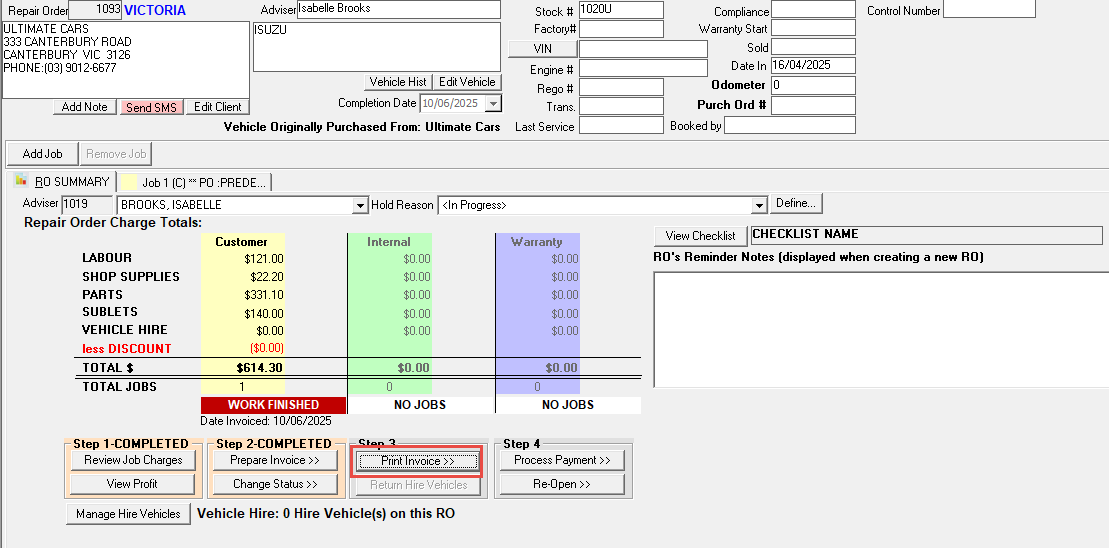
  9. If you did not print the invoice in the previous step, you can click Print Invoice in the invoicing screen.
    https://s3-ap-southeast-2.amazonaws.com/aus-cdn.freshdesk.com/data/helpdesk/attachments/production/51229791569/original/8EwzVQcxo_yJ3XZxk8oKnMoEoDe873clEw.png?1749527791

  10. Once you are ready to process the payment/invoice, click Process Payment, then Process Customer Payment.

    https://s3-ap-southeast-2.amazonaws.com/aus-cdn.freshdesk.com/data/helpdesk/attachments/production/51229791599/original/vXnfnaoyHM054JP5VQiHONU3gcEiOmxXGA.png?1749527798

  11. The details entered in the Prepare Invoice step have been retained. If the payment method differs you can change here.

  12. Click Process Invoice.

    https://s3-ap-southeast-2.amazonaws.com/aus-cdn.freshdesk.com/data/helpdesk/attachments/production/51229791634/original/H6jJQTzlAxG2cZC6m2YNXpdORsoToTXhiQ.png?1749527805


Related Articles


How to add costings to a repair order


How to create a repair order


How to create client deals for service customers


How to charge a service invoice to more than one client


How to process an internal or warranty repair order


How to process insurance repair orders