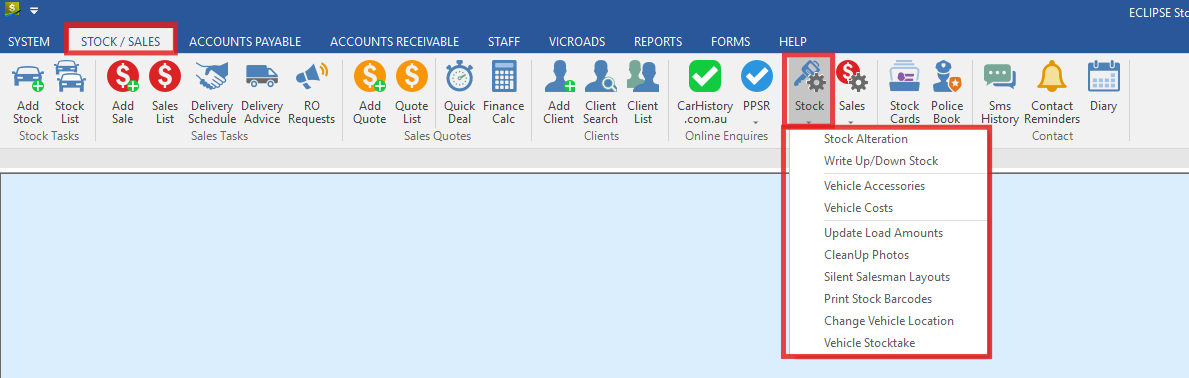
The Maintenance area includes tools that affect both the stock and sales sides of Eclipse DMS. This guide focuses on the Stock menu and explains when to use each option, what each screen does, and what to check before saving changes.
Accessing the Stock Menu
When you click the Stock button in the Maintenance section, Eclipse DMS displays a drop-down list of stock-related options. These options are used to correct purchase details, adjust inventory values, and move costs between vehicles or to a ledger account.
Stock Alteration
Stock Alteration is used when you need to change the original purchase details of a vehicle.
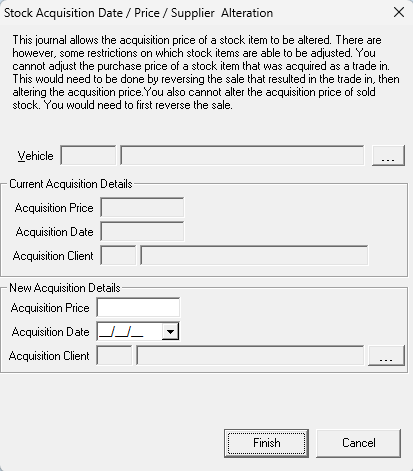
Important: In most cases, changes can now be made through the Stock Details screen instead of this screen. The vehicle must not have been sold and finalised before any alteration can be made.
Use this option when a vehicle was entered with incorrect acquisition information, such as the wrong purchase price, wrong acquisition date, or wrong acquisition client.
How to use Stock Alteration
-
Select the vehicle you want to update.
-
Enter the corrected information in the New Acquisition Details section.
-
Click Finish to save the change, or Cancel to exit without saving.
Field guide
|
Field |
What to enter |
|---|---|
|
Vehicle |
Enter or select the vehicle you want to change. |
|
Acquisition Price |
Enter the new acquisition price if the purchase cost was entered incorrectly. If no price change is needed, leave this blank. |
|
Acquisition Date |
Update this if the actual purchase date was entered incorrectly. If the date is already correct, leave it unchanged. |
|
Acquisition Client |
Use this field if the wrong supplier or client was attached to the purchase. |
|
Finish |
Applies the changes to the vehicle record. |
|
Cancel |
Closes the screen without making any changes. |
Write Up/Down Stock
Write Up/Down Stock is used whenever you need to adjust the cost value of a vehicle. This can be used to either increase or decrease the inventory cost held against stock.
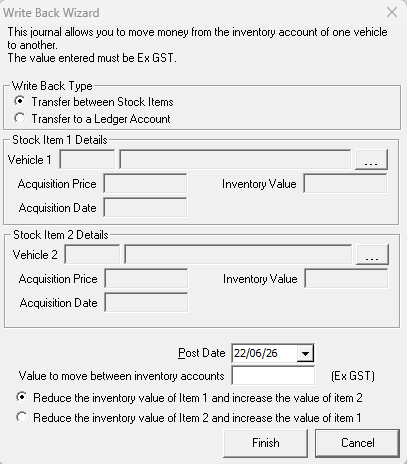
What this does: This journal allows you to move money from the inventory account of one vehicle to another vehicle, or from a vehicle’s inventory account to a ledger account. Eclipse DMS then creates the necessary journal entries to reflect the change in inventory value.
Depending on the option selected, one side of the transaction will be credited and the other side will be debited. This ensures the inventory movement is recorded correctly in the system.
Available write back types
|
Option |
Use when |
|---|---|
|
Transfer between stock Items |
You want to move value from one vehicle’s inventory to another vehicle’s inventory. |
|
Transfer to a Ledger Account |
You want to move value from a vehicle’s inventory account to a nominated ledger account. |
Transfer between stock items
Use this option when cost needs to be reallocated from one vehicle to another. This is commonly used when part of the cost has been applied to the wrong stock unit and needs to be moved.
How it works
-
Choose Transfer between stock Items in the Write Back Type frame.
-
Select the first vehicle in Vehicle 1.
-
Select the second vehicle in Vehicle 2.
-
Enter the value to move between inventory accounts (Ex GST).
-
Select the direction of the transfer.
-
Click Finish to process the journal, or Cancel to exit without saving.
Field guide
|
Field |
What it does |
|---|---|
|
Vehicle 1 |
Select the first vehicle involved in the adjustment. |
|
Vehicle 2 |
Select the second vehicle involved in the adjustment. |
|
Value to move between inventory accounts (Ex GST) |
Enter the amount you want to transfer between the two stock items. |
|
Reduce the inventory value of Item 1 and increase the value of Item 2 |
Moves value out of Vehicle 1 and into Vehicle 2. |
|
Reduce the inventory value of Item 2 and increase the value of Item 1 |
Moves value out of Vehicle 2 and into Vehicle 1. |
|
Finish |
Completes the transfer and posts the journal. |
|
Cancel |
Closes the screen without making any changes. |
Best practice: Double-check both stock numbers and the transfer direction before clicking Finish. This helps prevent accidental movement of cost to the wrong vehicle.
Transfer to a ledger account
Use this option when the value needs to be taken from a vehicle’s inventory and posted to a ledger account instead of another stock unit.
How it works
-
Choose Transfer to a Ledger Account in the Write Back Type frame.
-
Select the vehicle in Vehicle 1.
-
Select the required ledger Account.
-
Enter the value to move between inventory accounts (Ex GST).
-
Click Finish to process the transfer, or Cancel to exit without saving.
Field guide
|
Field |
What it does |
|---|---|
|
Vehicle 1 |
Select the vehicle whose inventory value you want to adjust. |
|
Account |
Select the ledger account the value will be transferred to. |
|
Value to move between inventory accounts (Ex GST) |
Enter the amount to move from the vehicle to the selected ledger account. |
|
Finish |
Completes the transfer and posts the journal. |
|
Cancel |
Closes the screen without making any changes. |
Quick checks before processing
-
Make sure you have selected the correct vehicle or vehicles.
-
Confirm the amount being moved is correct and entered Ex GST.
-
Check the transfer direction carefully when moving value between two stock items.
-
Use the correct ledger account when transferring value out of stock.
-
If changing acquisition details, confirm the vehicle has not been sold and finalised.
Summary: Use Stock Alteration to correct purchase details, and use Write Up/Down Stock to move or reallocate inventory value. Both functions are designed to keep vehicle costing accurate within Eclipse DMS.