
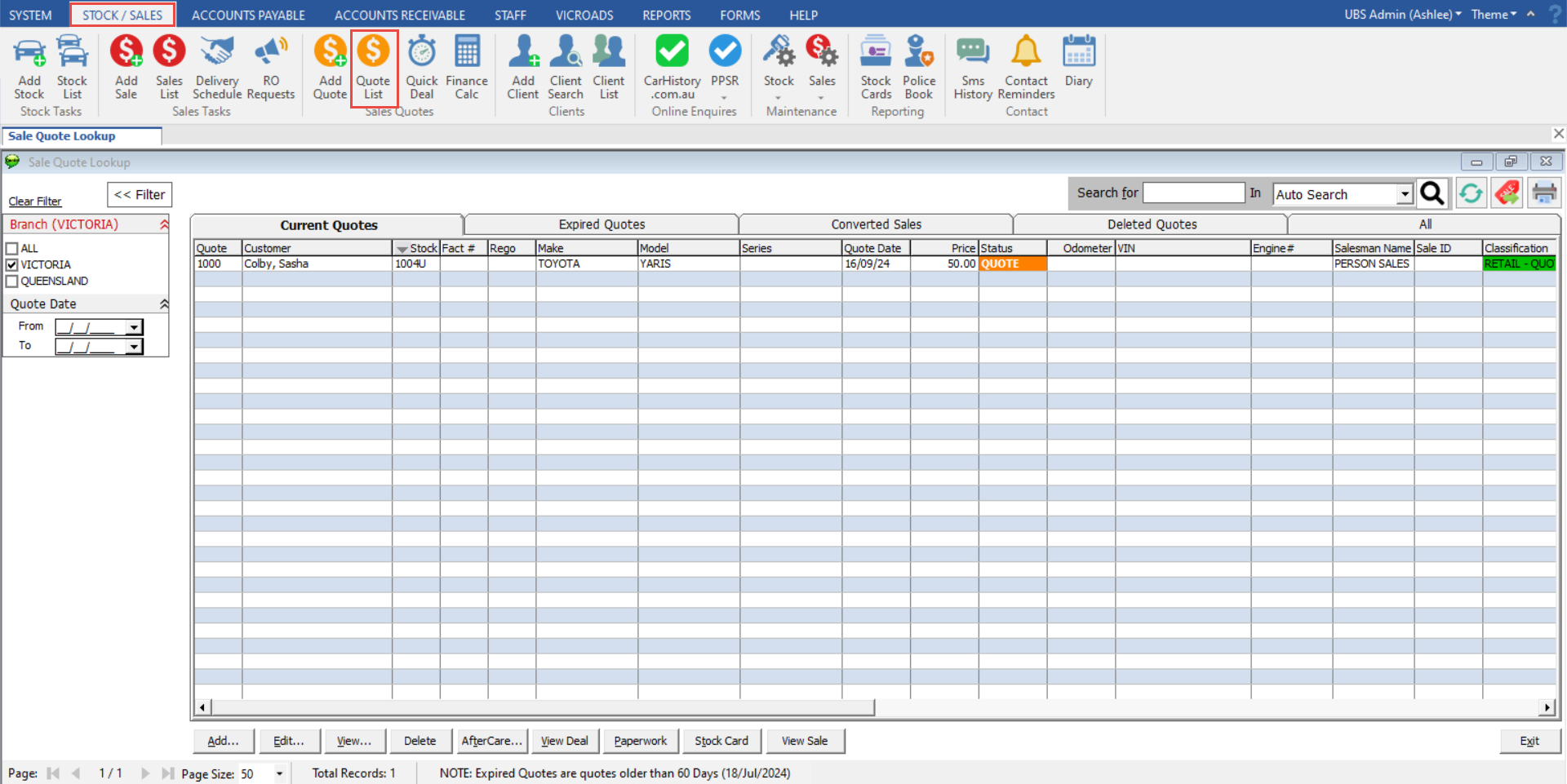
Under the Stock/Sales tab, you will find the Quote List screen. This screen is used to manage your customer quotes.
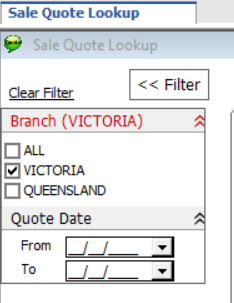
The left hand side of the screen contains your filters, so you can choose what displays in the list screen.
In the top right of the screen is a search bar and a few buttons.

The search bar can be used to search anything relating to the quote, including stock number, regos, stock make, or quote customer name.
The left most button refreshes the quote list screen.
The middle button will take you directly to the sale if the quote has been converted.
The right hand side button will print the current page of the quote list.
Across the top of the screen, you have further filters/tabs that will display quotes based on their status.

Current - Quotes that have been created recently.
Expired - Quotes that have passed the date range set in the System Options.
Converted Sales - Quotes that have been converted into sales.
Deleted Quotes - Quotes that have been deleted.
All - All quotes regardless of their status.
Along the bottom of the screen are your action buttons.

Add - Create a new quote.
Edit - Edit the selected quote.
View - View the selected quote.
Delete - Delete the selected quote.
AfterCare - Quickly add an aftercare cost.
View Deal - View the expected profit on the deal.
Paperwork - Print the paperwork associated with the quote.
Stock Card - View the stock card for the selected quote.
View Sale - View the sale if the quote has been converted.
Related Articles
Navigating the sales list screen