
Under the Sales Tag icon, you will find the Sales List screen. This screen is used to manage your vehicles sales.
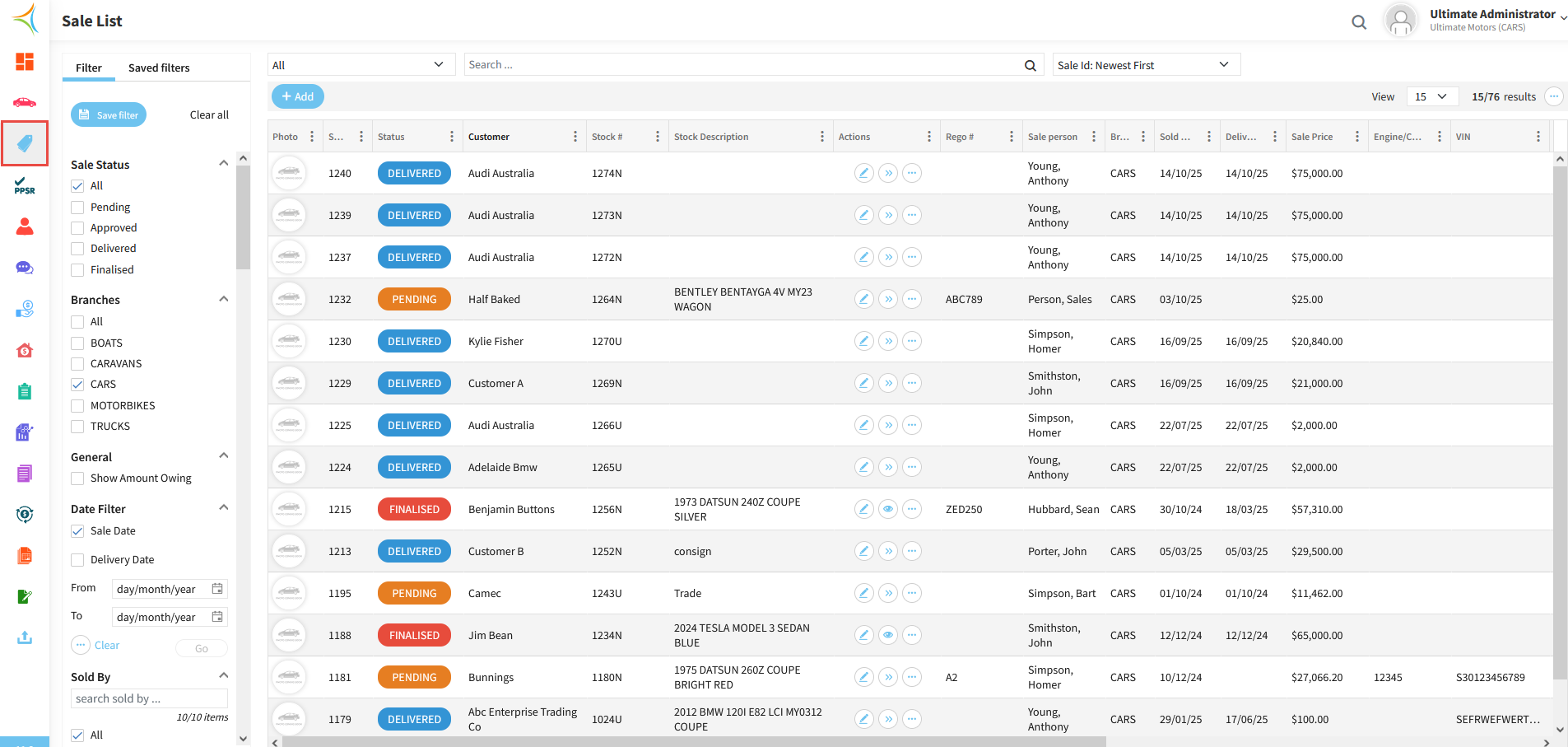
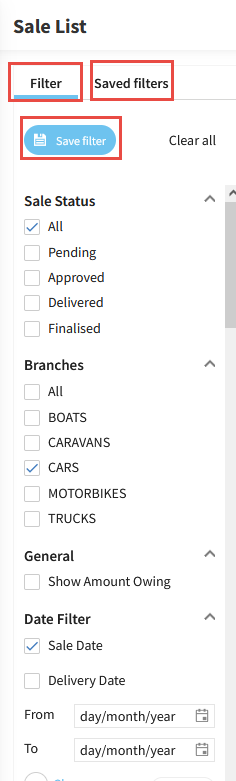
The left hand side of the screen displays the list filters, so you can choose what displays in the list screen. You can also save filters which can then be found under Saved Filters
If you cannot find a particular vehicle sale, ensure all filters are cleared
The top of the screen is where you can search for a particular sale. You can search specifically via Stock Number, Customer Name etc, or keep it in All to search through all fields.

Below the search bar is the Add button, which is used to enter a new sale.

Along each sale line are 3 buttons; the Edit, Forward, and More Options buttons.
Edit: Clicking this allows you to make changes to the selected sale.
Forward: This will move the sale through the different stages (Pending, Approved, Invoiced, Delivered, and Finalised, depending on your set up). Once the sale has been finalised, the forward button will change to an eye icon, which is used to view the finalisation of the sale.
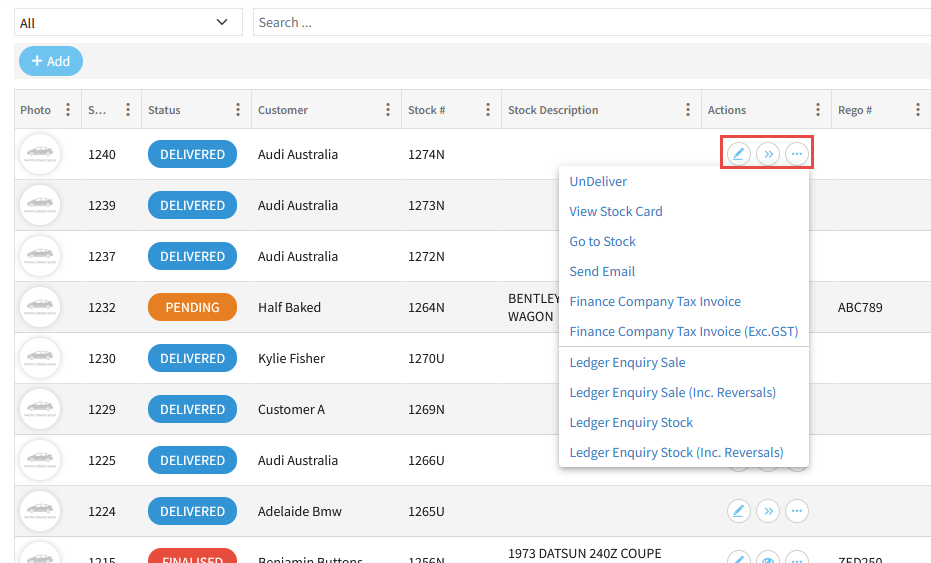
More Options
Unsell/Undeliver/Unfinalise - This will move the sale back to the previous stage
View Stock Card - View the stock card for the selected stock unit
Go to Stock - Clicking this will take you directly to the stock unit in the stock list
Finance Company Tax Invoice - Used to print/preview the finance company tax invoice
Finance Company Tax Invoice (Exc. GST) - Will show the above excluding GST
Ledger Enquiry Sale - Displays a ledger enquiry run on the sale number
Ledger Enquiry Sale (Inc Reversals) - Displays the same as above but also includes any reversals done
Ledger Enquiry Stock - Displays a ledger enquiry run on the stock number
Ledger Enquiry Stock (Inc Reversals) - Displays the same as above but also includes any reversals done
Related Articles
Navigating the stock list screen in Aura